Custom SVG Launcher Icon
By default, NanoLog uses a universally recognized and beautifully designed "Bell" icon to indicate notifications and updates to your users. However, for a truly native, white-label product experience, you may want to replace this default icon with one that exactly matches your application's unique iconography and UI design system.
NanoLog makes it incredibly easy to swap our default bell with any custom SVG icon of your choice.
Why Use a Custom SVG Launcher?
- Brand Aesthetic Alignment: Keep your icon family unified by using the exact same style (e.g., Lucide, Heroicons, FontAwesome) as the rest of your interface.
- Infinite Scaling & Sharpness: Because SVGs are vector-based, your launcher will look absolutely razor-sharp on high-density Retina screens and mobile viewports alike.
- Thematic Relevance: Align your launcher to match your announcement theme — whether it's a megaphone for news, a gift box for new features, or your own brand logo.
Configuring a Custom Icon
You can configure your launcher icon directly from the NanoLog dashboard in just a few clicks:
- Navigate to the Widget Appearance section in your dashboard.
- Under Trigger Configuration, locate the Icon Type selector.
- Select Custom SVG from the dropdown menu.
- Paste the raw SVG XML code directly into the provided text area. Make sure it contains correct standard properties like
viewBox="0 0 24 24",width="24", andheight="24"for correct scaling:
<svg viewBox="0 0 24 24" width="24" height="24" stroke="currentColor" stroke-width="2" fill="none" stroke-linecap="round" stroke-linejoin="round">
  <path d="M21 15a2 2 0 0 1-2 2H7l-4 4V5a2 2 0 0 1 2-2h14a2 2 0 0 1 2 2z"></path>
</svg>
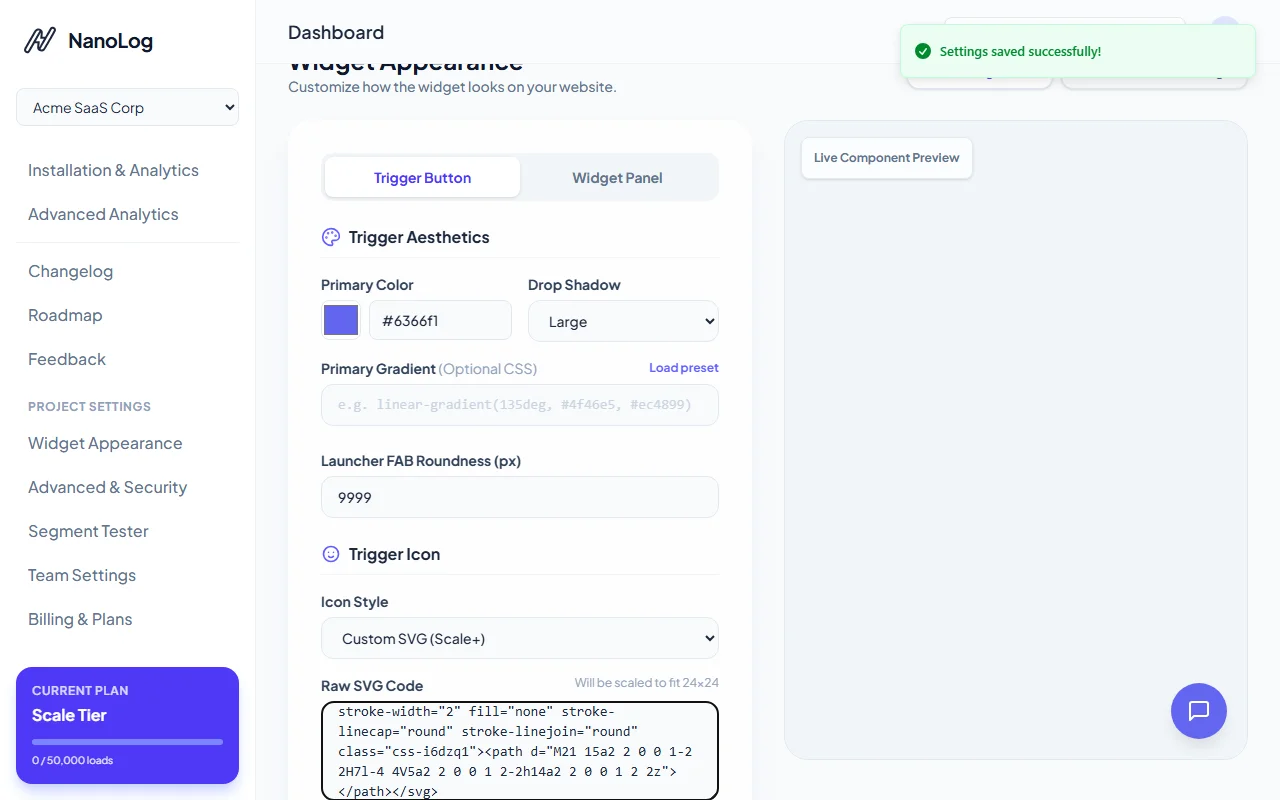
- Watch the launcher in the live dashboard preview immediately update to showcase your custom icon!
- Click Save Configuration to deploy your custom launcher to all your live installations instantly.

It's that simple to achieve a beautifully polished, completely integrated product appearance!