Setting Up Two-Factor Authentication (2FA)
To ensure the highest level of security for your NanoLog account, we strongly recommend enabling Two-Factor Authentication (2FA). This prevents unauthorized access even if your password is compromised.
How to Enable 2FA
- Go to your Account Settings by clicking on your avatar in the top right corner.
- Navigate to the Two-Factor Authentication section.
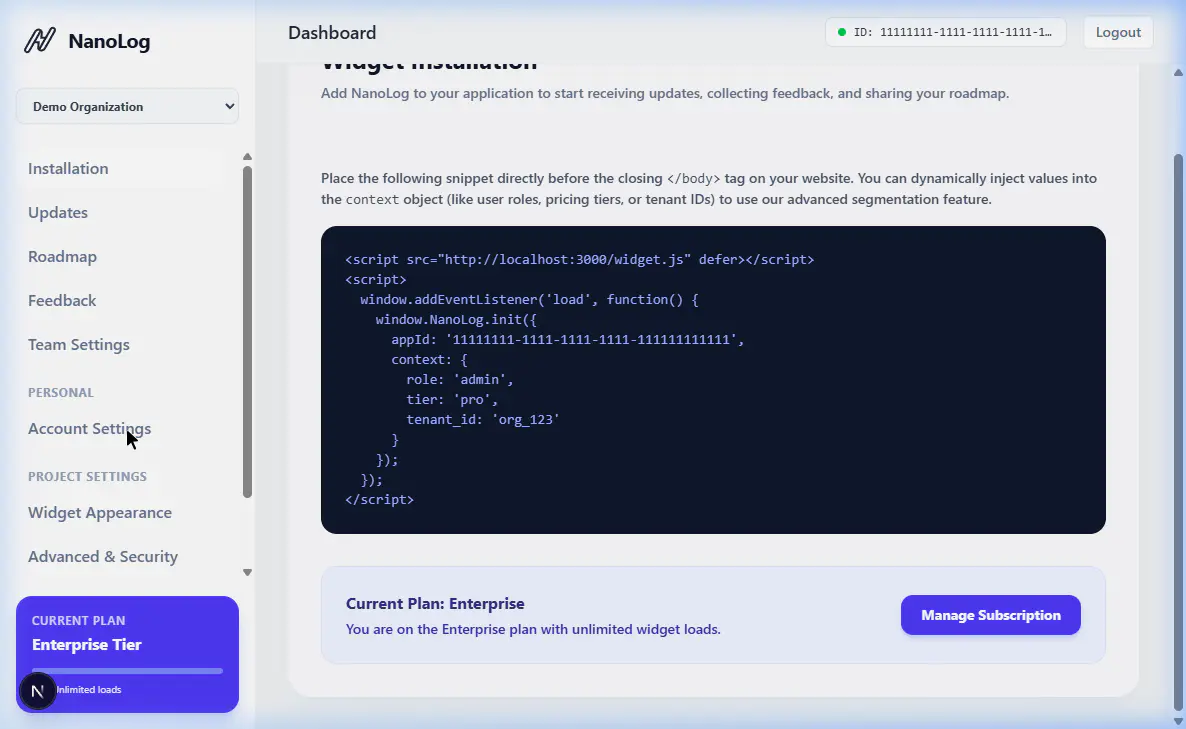
- Click on the Enable 2FA button.
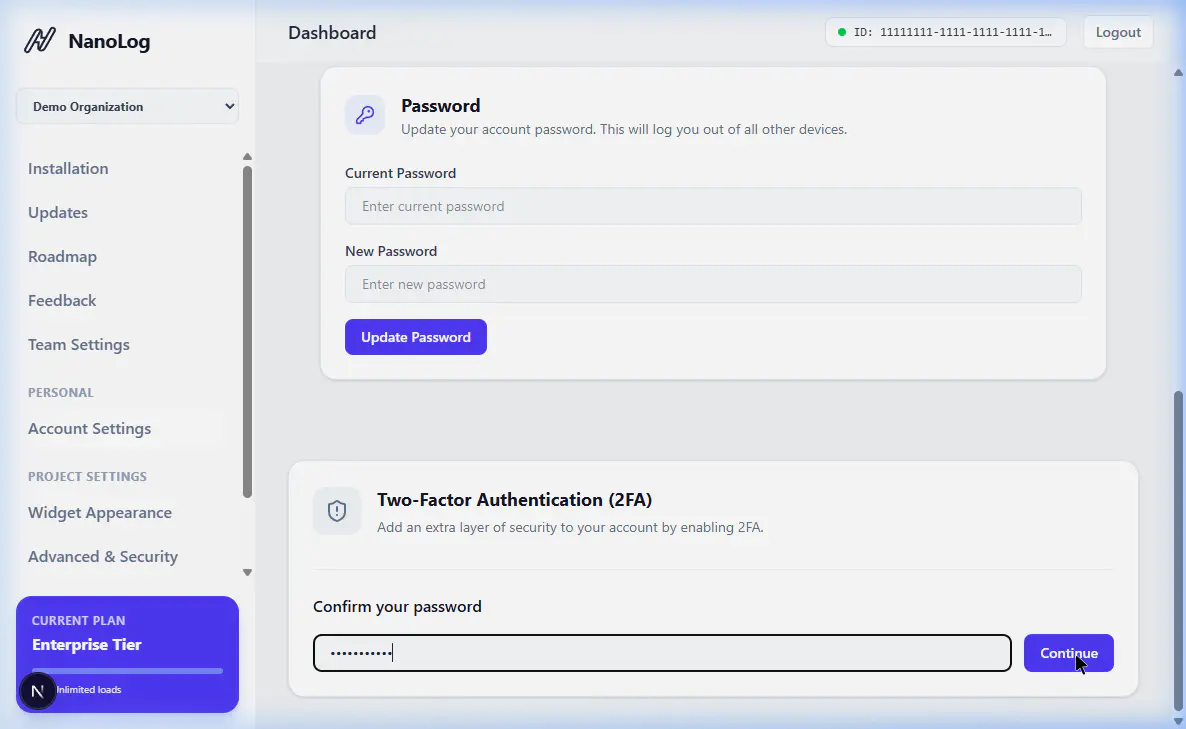
- You will be prompted to enter your current password to confirm your identity.
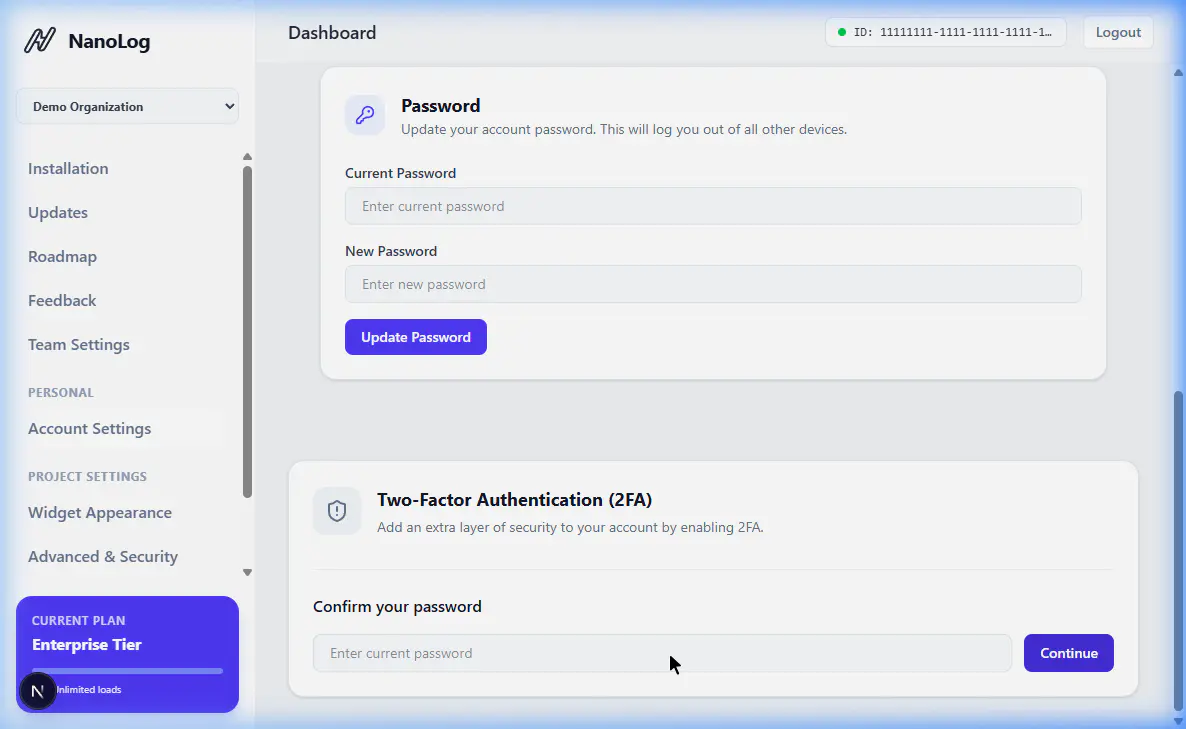
- After confirming your password, scan the provided QR code with your preferred authenticator app (such as Google Authenticator, Authy, or 1Password).
- Enter the 6-digit code generated by your app to verify the setup.
Backup Codes
Once 2FA is enabled, you will be provided with a set of backup codes. Save these codes in a secure location. If you lose access to your authenticator app (for instance, if you lose your phone), these codes are the only way to recover your account.
Each backup code can only be used once.
Disabling 2FA
If you need to disable 2FA, you can do so from the same Security tab in your Account Settings. You will need to enter your password to confirm the action.

The active Two-Factor Authentication configuration panel showing 2FA is successfully enabled with options to disable it.